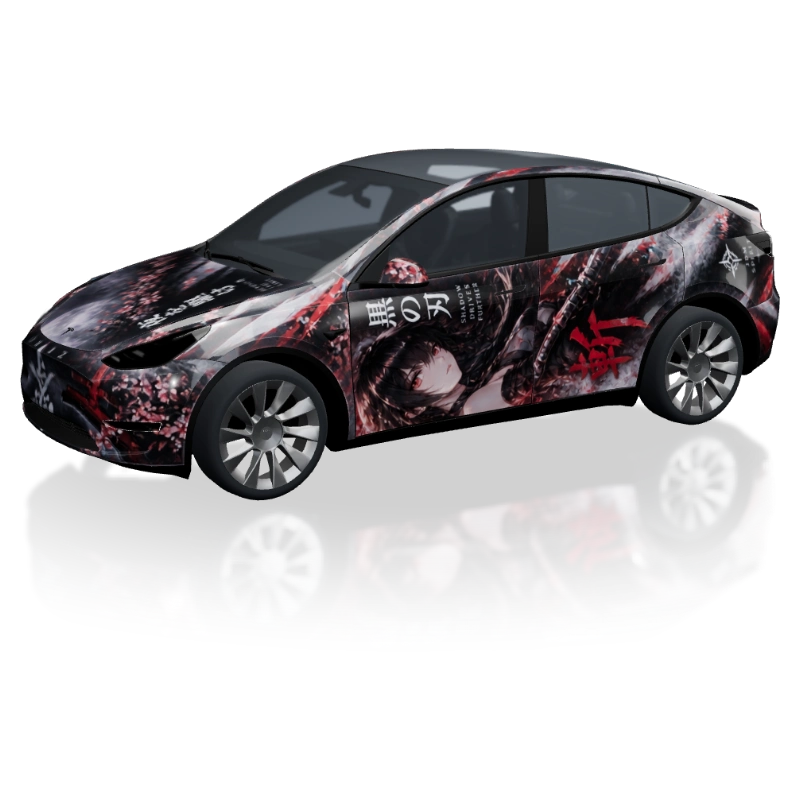
Anime
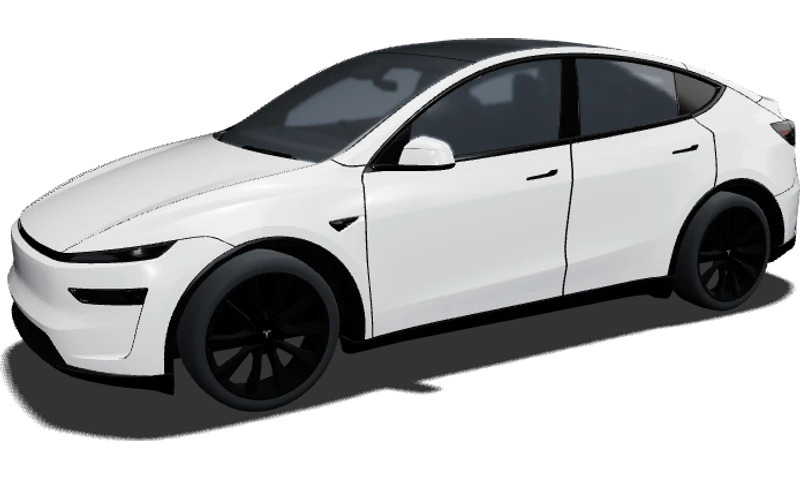
Model Y · Legacy
尤尤尤羿
A new look for your everyday drive
Give your everyday drive a look of its own. Explore a Tesla Model Y wrap in calm satin, deep gloss or a bold graphic style, then see it across the body in 3D. Choose your available version, try a color and build a design that feels as considered from the rear as it does from the side.
Explore colors and finishes here. Open the matching editor to arrange artwork and save.
Start AI DesignStart with Legacy, 2025 Base, Premium, Performance or Model Y L. Each card opens the corresponding vehicle template. Choosing the right version gives your color study and graphics a more useful starting point than applying the same image to every body.
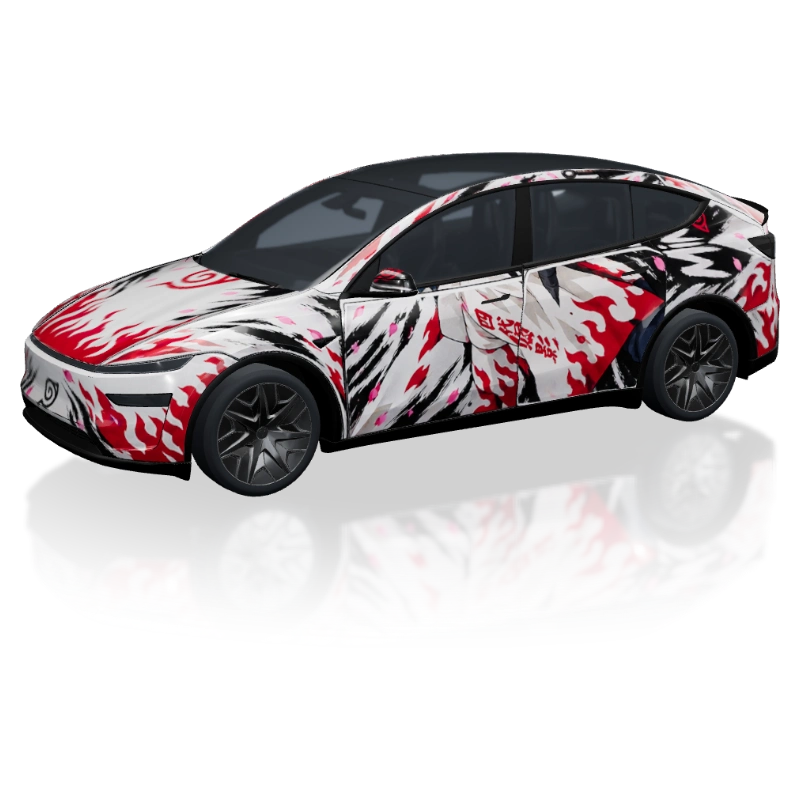
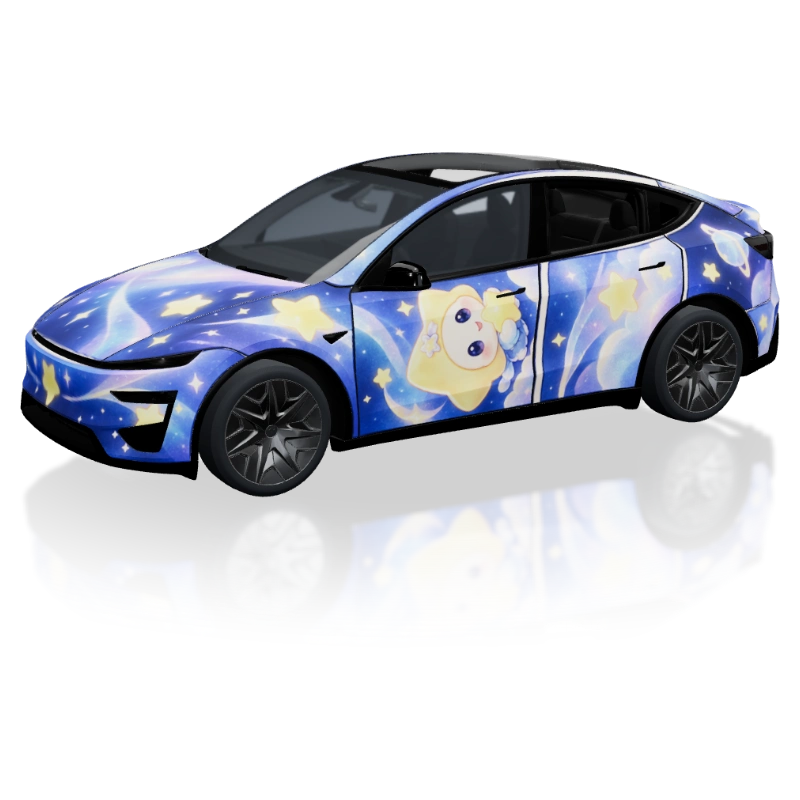
Look through community designs for a palette, a stripe or an illustration that sparks an idea. Pay attention to the relationship between the front and rear doors, the wheel arches and the hatch. Open a design to explore its artwork and preview before developing your own take on the style.
The broad side of Model Y gives color room to make an impression. Try a muted green, warm gray or deep blue for a restrained direction, or explore a brighter accent if you want more energy. Start with one main color and rotate the car before adding anything else. Look at the transition from the doors to the rear quarter: a shade you love in a flat swatch may feel different across those curves.
Compare the five available finishes under the same preview lighting. Gloss emphasizes reflections, satin softens them and matte offers a quieter surface. Metallic and pearlescent provide other ways to explore your palette. Keep the color fixed while switching finishes so the difference is easy to judge. Once a direction stands out, compare physical film samples with a shop before deciding on an actual material.
A Tesla Model Y wrap can use the doors as a broad canvas, but the strongest focal point does not need to fill every panel. Try a long stripe, a sequence of large geometric shapes or one illustration supported by quieter areas. Follow the composition from the front wheel to the rear, and notice where a line disappears into an arch or changes direction at a door edge.
For a business or personal identity concept, keep a logo and essential wording visually separate from a busy background. Add them as your own image and text layers in the editor so you can adjust their size and position. View the result from a distance as well as close up. A clean area around important details can make the whole design easier to understand, especially when the car is seen at an angle.
Use a shared color or repeated shape to connect the front of the vehicle with the side and rear. A bold side pattern can be balanced by a simpler hood, while a small accent on the hatch can echo the main composition. Check both sides rather than assuming the same idea reads equally well everywhere. The rear view deserves its own moment: it should feel like part of the design, even without seeing the doors.
The editor lets you arrange your own images, text and shapes in layers. If you want AI to suggest the background, describe the palette and pattern you have in mind, then review the generated image on the chosen vehicle. Its internal lettering and graphics remain part of a single image. Add exact wording separately, and generate another background when you want to change an element embedded in the AI artwork.
Before choosing your favorite Tesla Model Y wrap, compare its front, side and rear views using a consistent finish. Look for a clear focal point, comfortable spacing and colors that work together around the whole vehicle. You can start with an existing image in the preview, then add the artwork again in the editor to build your project. Save there when you want to return and continue refining the composition.
When you are ready to discuss a physical wrap, use the concept to show a shop the look you want. Explain which colors, shapes and placements matter most. The installer will still need to assess the actual vehicle and prepare the measured production artwork. A digital preview is useful for choosing a direction, while real film samples and professional layout work help carry that direction into a physical installation.
The studio represents the following bodies and configurations. Use your own vehicle details to choose a version, then review the artwork on its matching template. These notes describe the design previews available here rather than a complete equipment guide for every market.
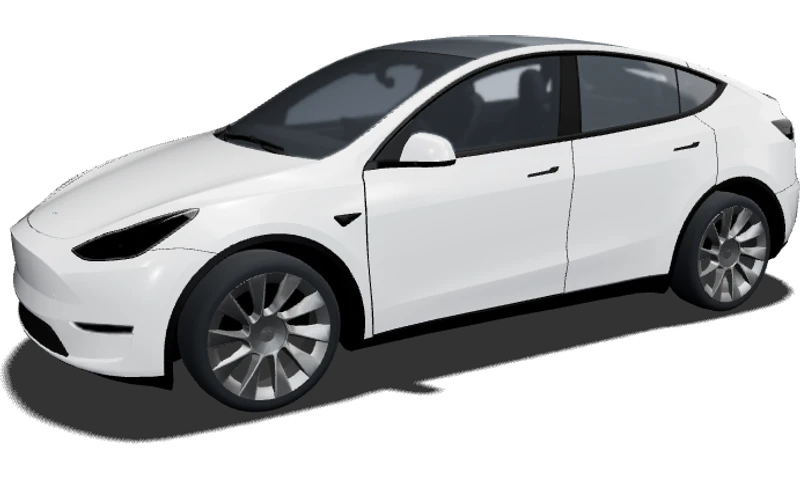
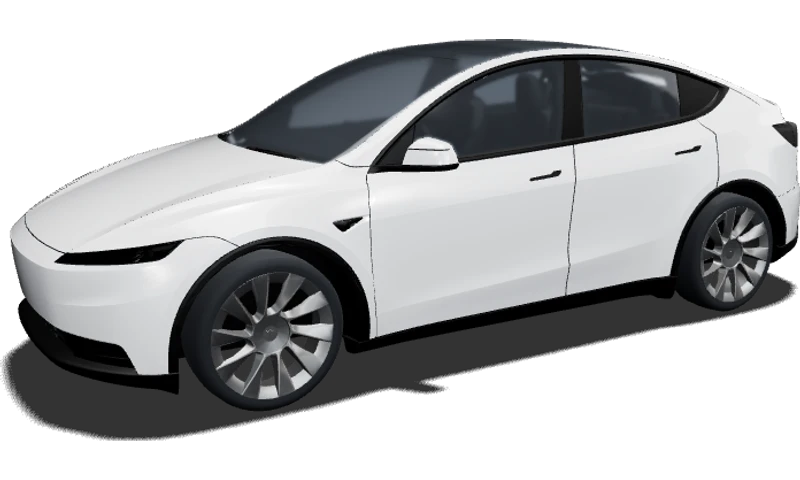
Begin with the original body template and explore how your main color meets the front and rear shapes. Check a stripe around the bumper corners before developing the rest of the side. An idea from a refreshed version can be useful inspiration, but deserves a fresh layout review here.
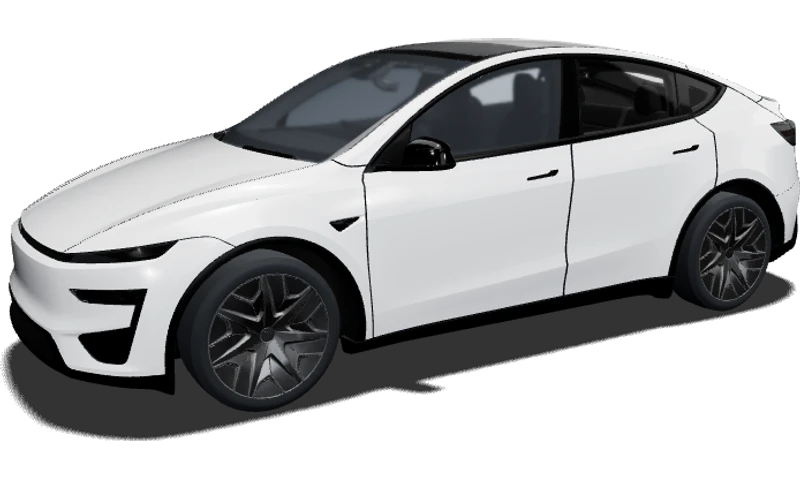
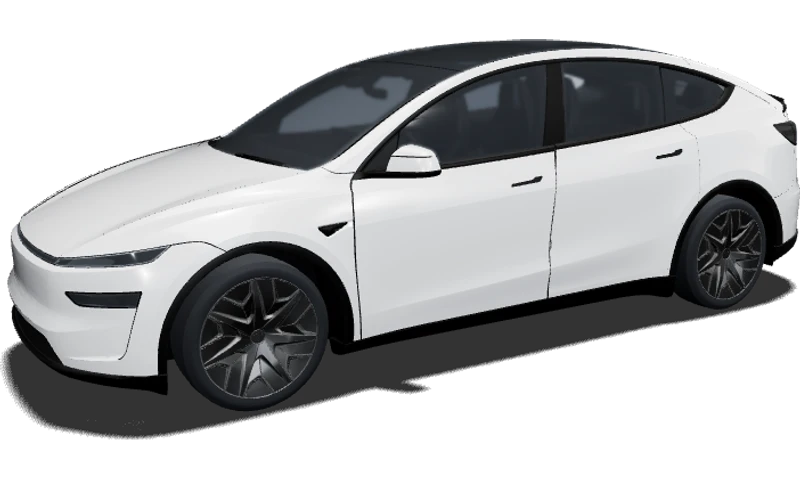
Choose the configuration that matches your intended preview and inspect its front, lower doors and wheel areas. The studio uses separate previews with different wheel sets. Keeping your palette consistent makes it easier to notice how the surrounding details affect the balance of the same graphic idea.
Use the dedicated Performance preview to judge graphics around its body and wheels. A darker lower section or a small bright accent is one direction to explore. Review the rear as carefully as the front so a sporty theme carries through the entire composition.
The longer side invites a different rhythm. Give repeated shapes enough space and reconsider where the main graphic begins and ends. Use the dedicated template to judge those proportions, rather than assuming a design arranged on the shorter body will keep the same balance.
Yes. Start with the color and finish controls to discover a direction, then open the matching editor when you want to add artwork. One image, a simple stripe or a small color accent can be enough for a first concept. Review it from several angles and adjust one element at a time. You can also use AI to explore an initial pattern.
You can choose Legacy, 2025 Base, 2025 Premium, 2025 Performance and Model Y L. Each has a corresponding preview and editor template in the studio. Select the version before judging the placement of your artwork. If your configuration is not represented, use the available previews for style exploration without assuming they are an exact match for your vehicle.
You can explore the same visual theme, but review the layout on the destination template. Different body shapes and proportions can change where a stripe ends or how an illustration crosses a panel. For Model Y L, pay particular attention to spacing along the side. Reposition your own editable layers and inspect the whole car before saving the new composition.
Yes. The preview accepts local JPEG, PNG and WebP images up to 5 MB. A matching wrap texture is the best starting point for panel placement; a normal picture may appear split because different parts map to different body panels. The image stays local in this preview and clears on reload. Add it separately in the editor to work on a saved project.
AI output is one flattened image, so its existing letters, logos and illustrations cannot be selected independently. Use the manual editor to create your own text or upload a logo as a separate layer when exact placement matters. Those new layers can be positioned and resized. If the background itself needs changing, revise the prompt and generate a different image.
The browser preview and manual editor are free to use; AI generation is optional and uses credits. You can take a concept to a wrap shop to discuss the look, but the preview is not a measured print layout. A professional needs to check the physical vehicle, material, resolution and panel preparation before production. Use real samples to confirm your chosen finish.
Create it. Preview it. Share it.
Start with a subtle color or a bold pattern. Choose your version and open the editor to give the doors, hood and hatch a style that belongs together.