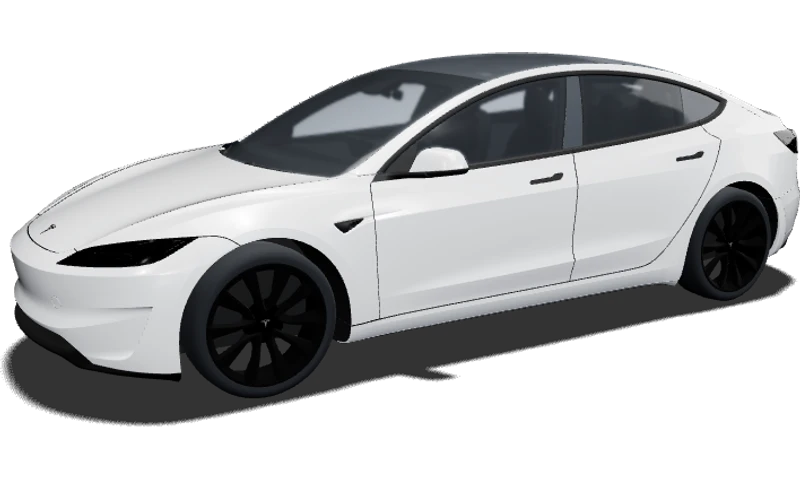
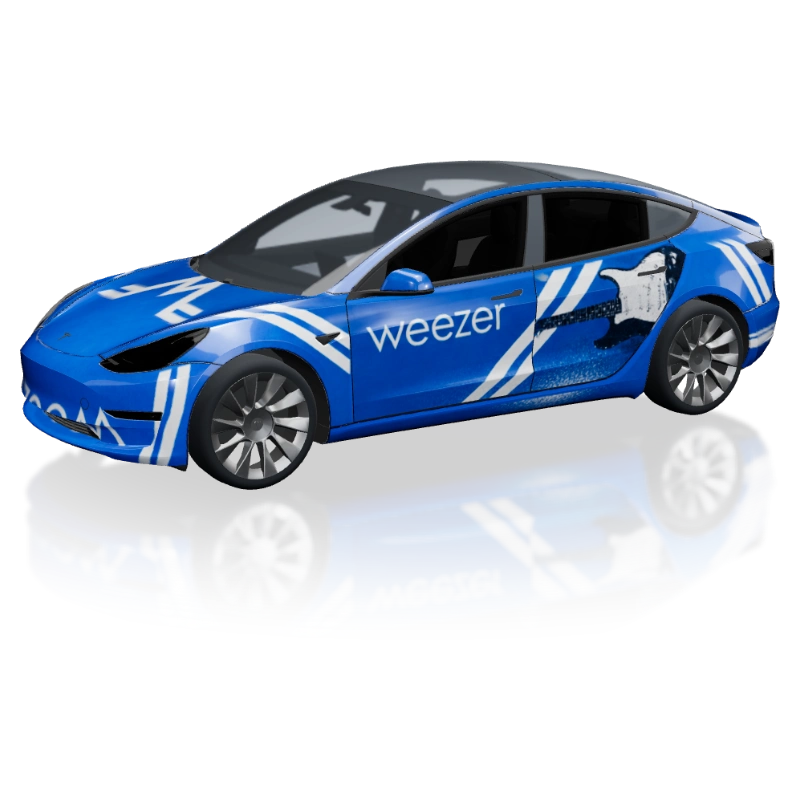
weezer blue
Model 3 · Legacy
AAlexa Rusu
Clean lines. A look of your own.
Find a fresh expression for a familiar silhouette. Design a Tesla Model 3 wrap with a subtle satin color, a crisp racing stripe or an illustrated theme, and explore the result in 3D. Start with Legacy, 2024 Base or 2024 Performance, then build a look that follows the car from its nose to its rear.
Try your palette on the car, then open the editor to build and save the composition.
Start AI DesignChoose the body you want to work with before arranging a graphic. Legacy, 2024 Base and 2024 Performance each open a matching editor template. Compare the front and rear shapes in the preview so your design begins with the right proportions.
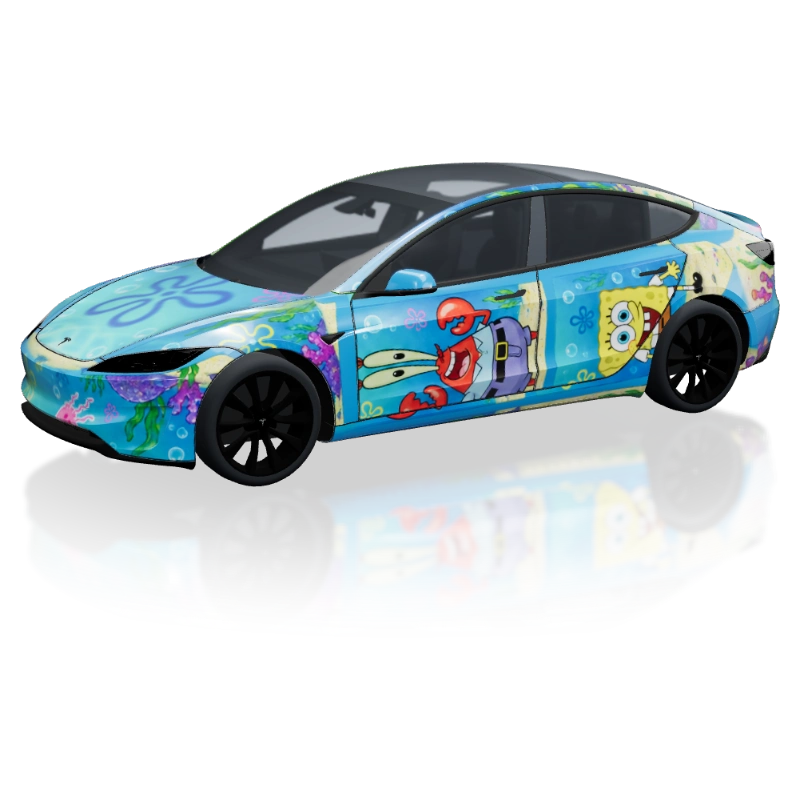
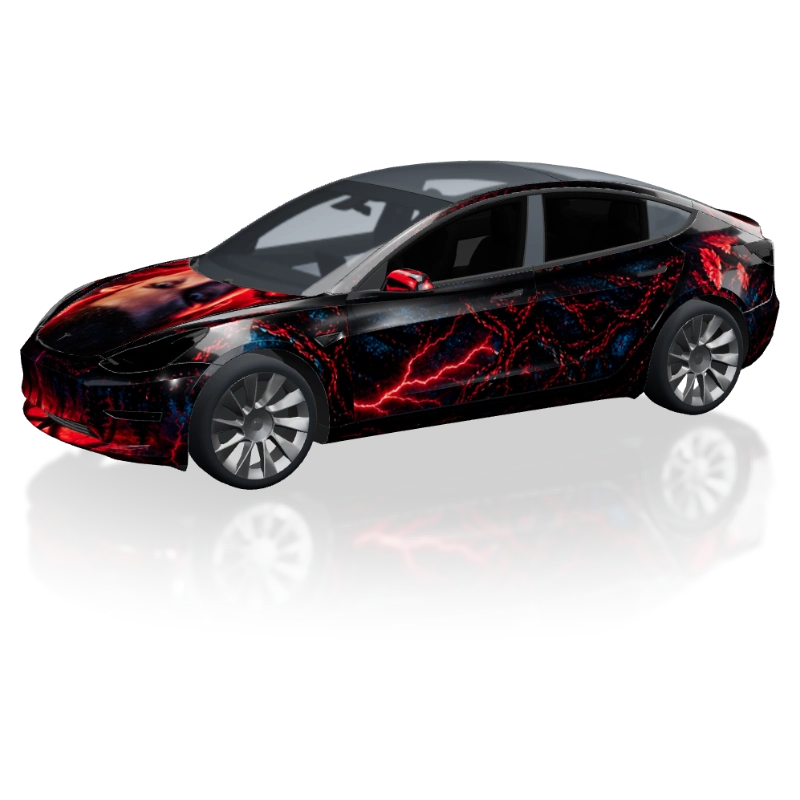
Explore community designs to see how a simple palette, a stripe or a full illustration changes the car’s character. Open a work to inspect its image and preview. Notice how the design handles the hood, the lower doors and the rear, then use that observation to develop your own direction.
Start with a color that suits the character you want: restrained, playful or more dramatic. A charcoal, warm white or muted blue can give the sedan a quiet presence, while a brighter hue shifts attention toward the body itself. Use the custom color control to explore alternatives and rotate the car as you compare. Look at how the hood, door surfaces and rear quarters reflect the same color differently.
Keep that palette in place while trying gloss, satin, matte, metallic and pearlescent finishes. The finish changes the way light describes the surfaces, so the same shade can suggest several directions. You might prefer a sharp gloss reflection on a simple design or a softer satin effect with a small accent. Use the preview to choose a visual mood, then look at real film samples before selecting physical vinyl.
A Tesla Model 3 wrap can feel energetic with just a few deliberate lines. Explore a central stripe, an offset accent or a geometric block that draws the eye along the doors. Begin with a main shape and one supporting color. Follow the design from a front corner to the side and rear, checking where it meets a bumper edge or passes close to a wheel arch.
For a track-inspired concept, consider the balance between the hood graphic and the side treatment. A bold front can work with quieter doors; a strong side illustration may need more space elsewhere. Add numbers or wording as separate text layers if you want to control them precisely. Review both sides in the editor, especially when a graphic has a direction, so the composition feels intentional all around the car.
An illustrated theme can be expressive without covering every surface equally. Choose a focal area, then repeat a color or a smaller detail elsewhere to connect the design. Bring your own artwork into the editor, adjust the image layers and create any wording separately. For a logo, use a separate uploaded image so its placement and scale remain under your control. Step back in the preview to judge the overall impression.
If you are still looking for a starting pattern, describe a palette and theme in the AI generator or add a reference image. Review the resulting texture on the selected vehicle before deciding what to add. Generated lettering, logos and illustrations are pixels in one flat image, so they cannot be moved individually. For exact details, add your own layers; for a different generated composition, revise the prompt and try another image.
Review your Tesla Model 3 wrap beyond the angle that first caught your eye. Look at the hood near the lights, the lower doors, the rear quarter and the trunk area. Keep important details away from awkward panel transitions in your own layer arrangement. A small adjustment in spacing can help a stripe or illustration read more clearly. Compare the full car again after each meaningful change rather than judging only a close-up.
Save the composition in the editor when it feels ready to revisit or share as a concept. If you plan to have a physical wrap made, use the artwork to explain the colors and graphic placement to a shop. They will need to check your actual vehicle, choose the material and prepare production files. The preview helps you decide on the look; it does not replace measured panel layouts, print checks or installation planning.
These are the versions represented in this studio. Match your vehicle details to the available preview, then inspect the areas that matter to your design. Use the notes to guide your composition rather than as a complete specification list for every market.
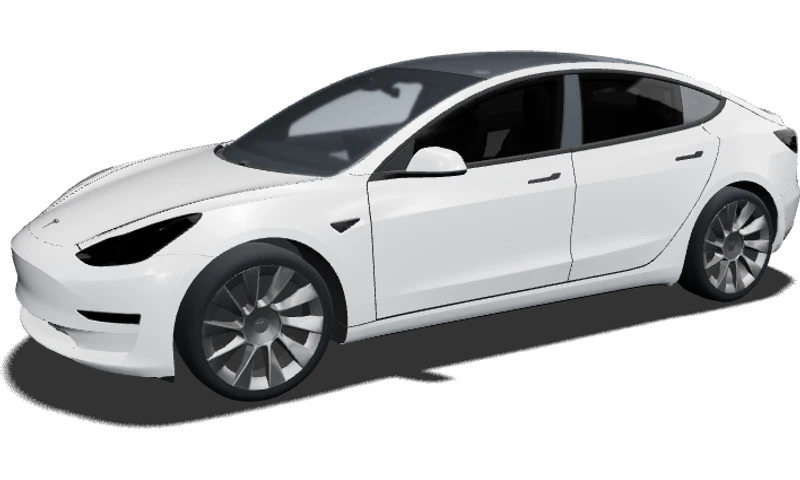
Work with the original silhouette and its dedicated template. Check the hood and bumper edges early if your design includes stripes, repeated shapes or a large front graphic. Let the panel boundaries guide your placement so the theme continues naturally from the front into the side.
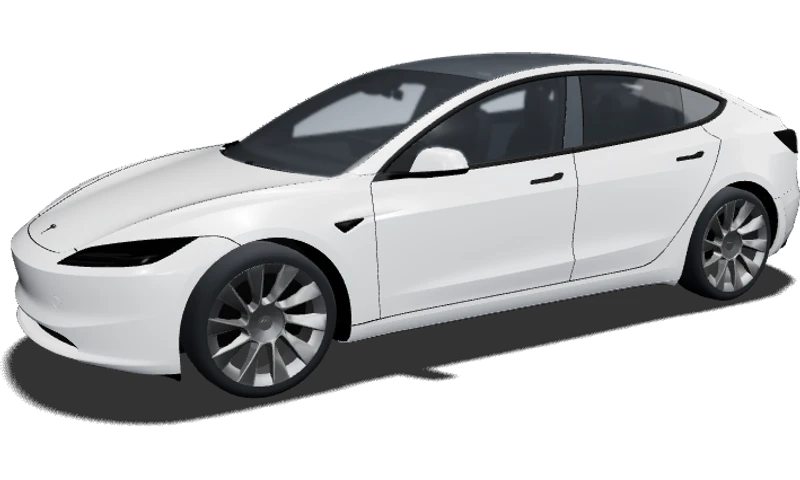
Explore the updated body using its matching preview and template. Pay attention to graphics near the lights and around the front and rear corners. A familiar palette can still work, but a layout created for the Legacy body deserves another review before you build on it.
The Performance preview uses its own body and wheel configuration. Try the same palette here to see how contrast around the wheel areas and rear affects the overall feel. Build the graphic around what you can see in this version instead of assuming the Base composition needs no changes.
Choose Legacy, 2024 Base or 2024 Performance, then try one color and a finish in the preview. Rotate the car to see whether you like the direction before adding detail. When you want to arrange images, text or shapes, open the matching editor. Starting with a simple palette gives you a clear base for a stripe, illustration or personal accent.
Yes. The studio includes 2024 Base and 2024 Performance alongside the Legacy body. Select the corresponding version to use its preview and template. Review your vehicle information when choosing: the available models are design references for the listed configurations, not a guarantee that every regional trim or later model year shares the same body details.
You can use the color controls to explore your own palette and compare gloss, satin, matte, metallic and pearlescent finishes. Try holding the color constant while changing the finish, then reverse the comparison. That makes it easier to separate a color preference from a reflection preference. The display is a visual reference; confirm actual vinyl with physical samples.
The preview accepts JPEG, PNG and WebP images up to 5 MB, read locally in your browser. A matching wrap texture maps more usefully than a regular photograph. You can compare a Legacy image on another version, but recheck its layout on the target template, especially around the lights and bumpers. Add the image again in the editor when you want to build a saved project.
Yes. In the manual editor, create text or upload a logo as an independent image layer, then adjust its size and position. These elements remain separate from a background image. Text and graphics already inside an AI-generated picture cannot be edited individually. For precise wording, ask for an AI background without lettering and add your own text afterward.
The 3D preview and manual browser editor are free; optional AI generation uses credits. Your design can serve as a visual brief for a wrap shop. Before producing a physical wrap, the shop needs to review measurements, materials, image resolution and print layout. A concept preview is not a measured cutting file, so agree on production preparation separately.
Create it. Preview it. Share it.
Start with a color you keep coming back to. Add a line, an illustration or a personal detail, and build a design that feels right from the front bumper to the rear.