
Tesla wrap design: from first preview to a finished project
A practical workflow for choosing a Model 3 or Model Y, trying local artwork, editing layers, reviewing a 3D wrap, and saving or sharing your design.

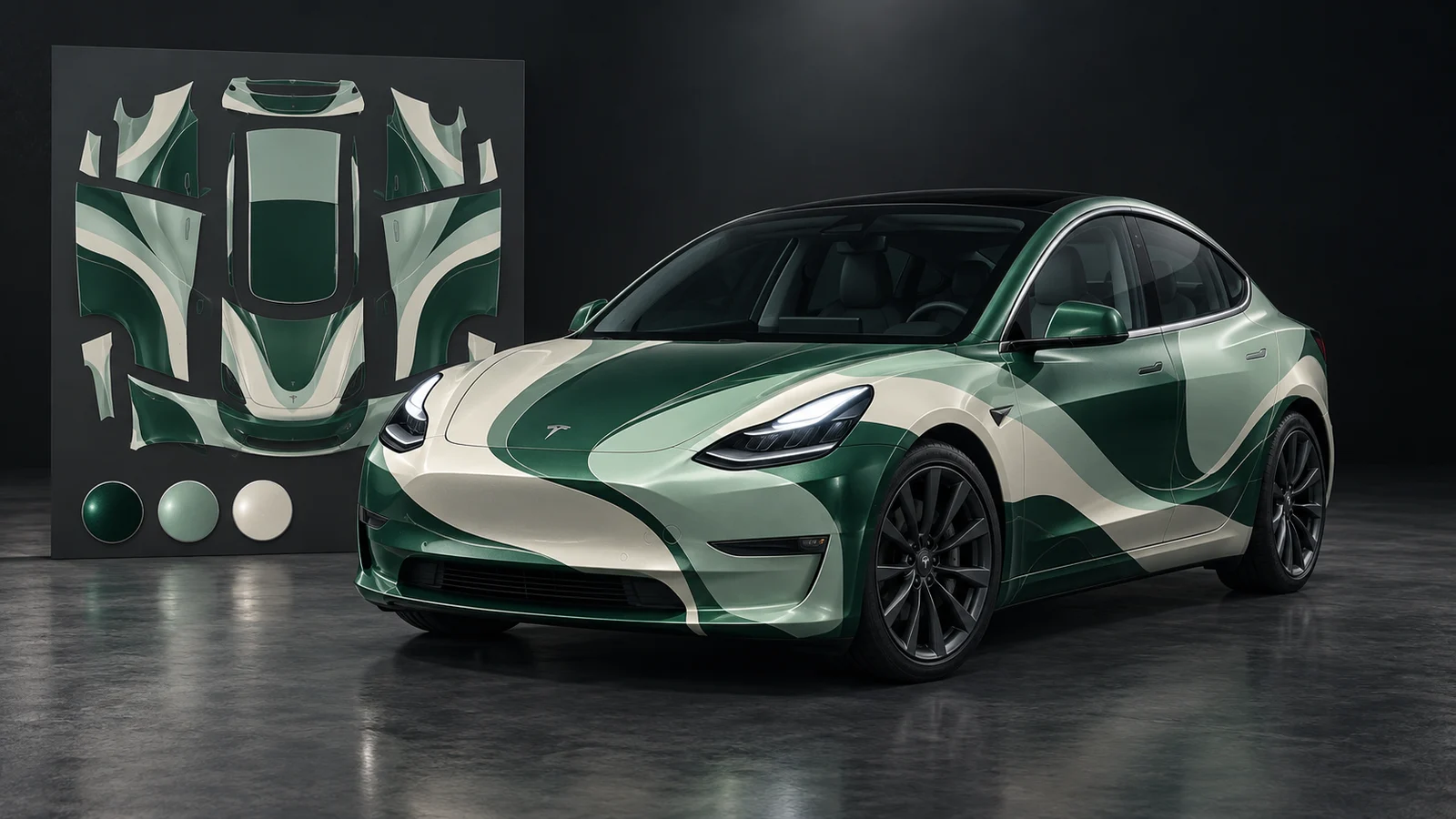
You can build a Tesla wrap from your own artwork or use AI to try a design idea. Both routes start with a vehicle template and a 3D preview. Once the design is ready, save the project, download the texture, and transfer it to your Tesla's vehicle visualization through the app or a USB drive.
Find inspiration or start designing
-
Browse the wrap gallery
to compare shared designs and find a color palette or pattern for your car. -
Create a wrap with AI
by choosing your vehicle and describing the design you want, with an optional reference image. -
Open the Model 3 Legacy editor
to arrange your own images, text, and shapes. Select another vehicle in the editor if you need a different template.
Before you start, choose your Tesla
Open the Tesla wrap page and match the model, year, and body to your car. The studio currently has 12 configurations across five families:
- Model 3: Legacy, 2024 Base, and 2024 Performance.
- Model Y: Legacy, 2025 Base, 2025 Premium, 2025 Performance, and Model Y L.
- Cybertruck: the 2023 configuration.
- Model S: 2021 and 2025 Plaid.
- Model X: the 2021 configuration.
The Model 3 and Model Y pages also let you compare versions within those families. These labels identify the studio's preview models; vehicle names and equipment can differ by market.
Rotate the model before adding artwork. Check its outline, front bumper, and rear details against your car. A stripe made for a Legacy body can land in the wrong place on a newer bumper, and a longer side panel can change the spacing of a repeating pattern. Choosing the matching template now saves time correcting the composition later.
If you are still looking for ideas, browse the wrap gallery. The vehicle pages show up to ten public designs for the relevant selection. Look at the size of the main graphic, the empty space around it, and where lines end. Check the creator's terms before reusing an image, especially for commercial work.
Try the color and finish in 3D
Drag to turn the car and zoom in to inspect a panel. Compare gloss, satin, matte, metallic, and pearlescent finishes with the same color and camera angle. You can enter a custom color when the preset palette does not have the shade you want.
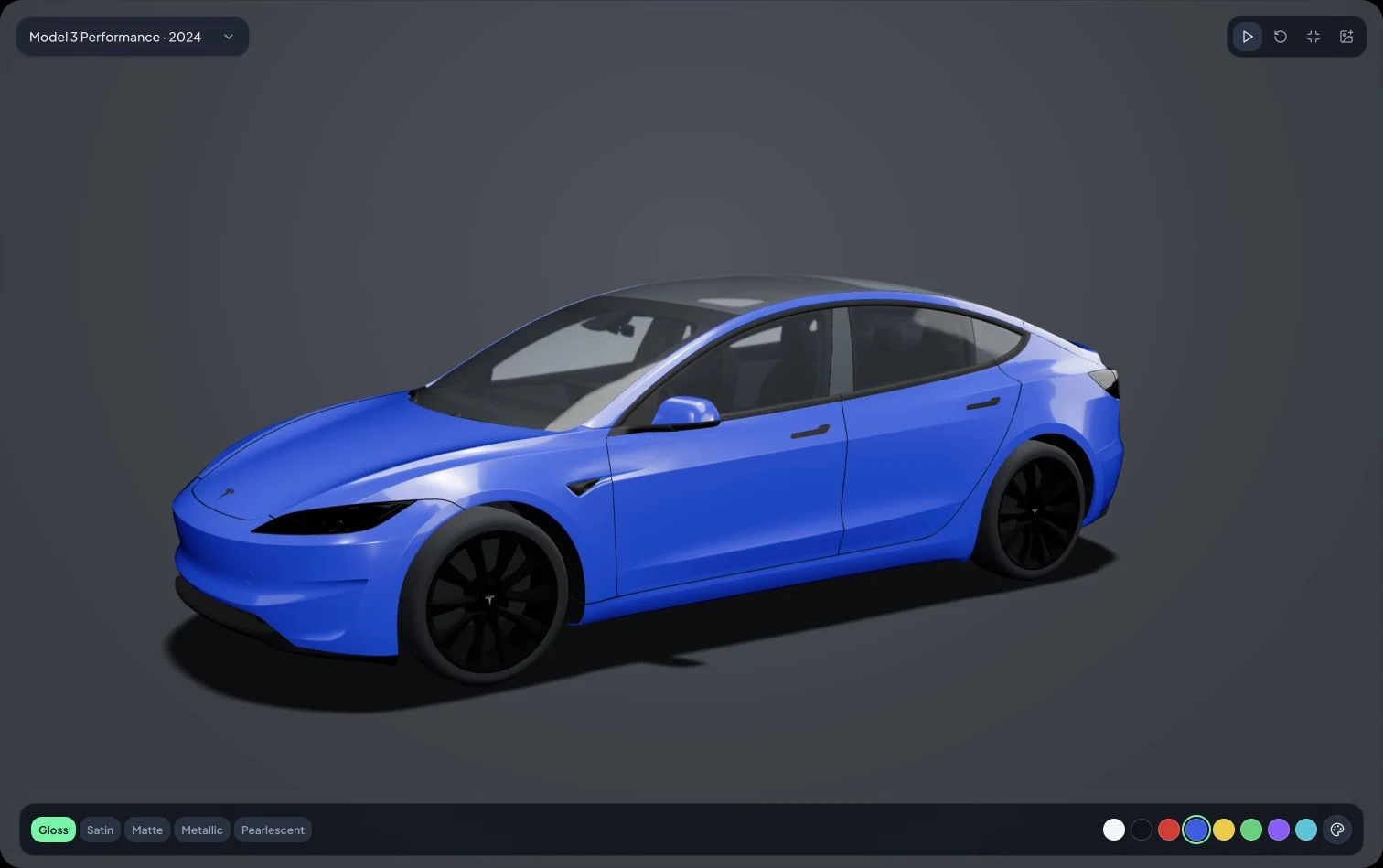
Compare the color and finish from the same angle before starting the artwork.
To try an image you already have, use the image button in the preview. It accepts JPEG, PNG, and WebP files up to 5 MB. The browser reads this image locally; this preview action does not upload it or create a saved project. Remove the image to return to a solid color. Reloading the page clears it too.
A normal photograph may appear in separate pieces across the car. The UV template assigns different parts of the flat image to different body panels, so a texture arranged for that vehicle is easier to judge in this view. Once you have a direction, choose Start designing. Keep the original file: the temporary preview image does not carry over to the editor.
Design with AI
Open the AI car wrap generator and select the vehicle you chose above. Describe what you want to see on the body: the main color, the size and direction of the pattern, and any areas you want to leave clear. For example:
Deep green base, a thin warm-white diagonal across the doors, generous empty space around the hood, no lettering.
You can add a reference image to explain a palette or texture. Use artwork you have permission to upload, and describe which parts of the reference you want to carry over. A reference does not guarantee that the result will fit every panel.
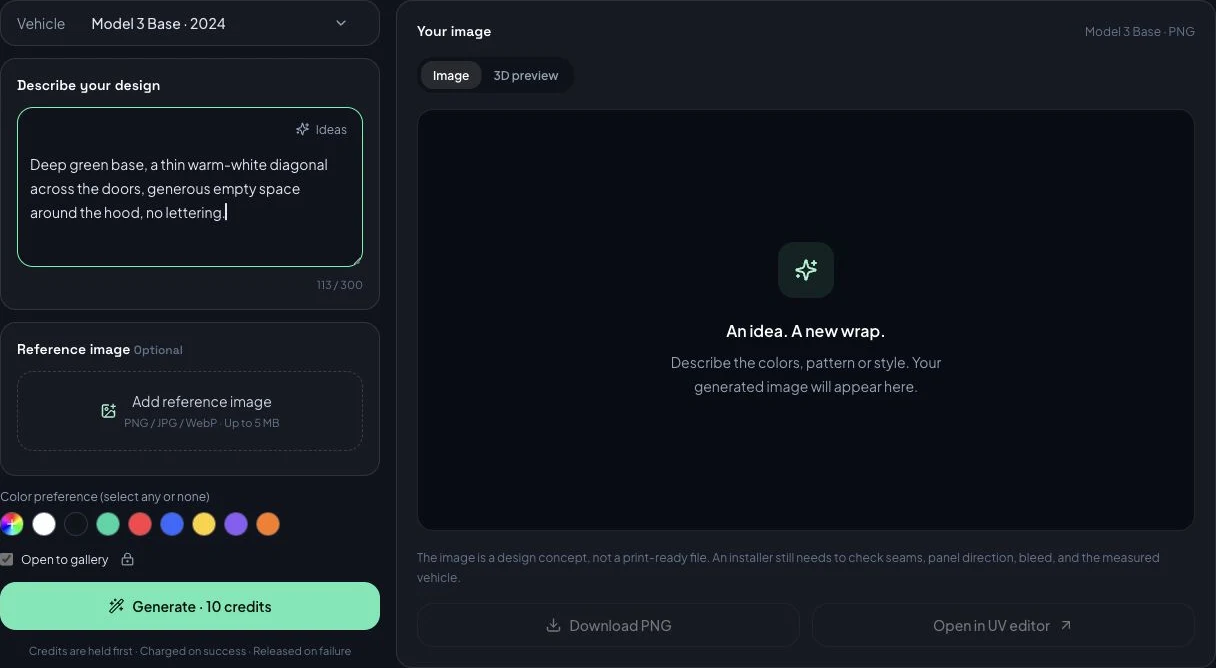
Choose the vehicle and write the prompt before submitting a generation.
Sign in when prompted, check the credit cost, and review the Open to gallery setting before generating. When the image is ready, switch between the flat image and the 3D preview. Inspect lettering, symmetrical details, and the places where the design crosses between panels.
The AI result is one flat image. Text or a logo inside it cannot be selected and moved on its own. To change an embedded detail, revise the prompt and generate another version, or edit the image externally. You can also open the result in the editor and add separate text, images, or shapes on top.
Design in the editor
If you already have artwork, or want to position each element yourself, start in the editor for your vehicle. For example, the Model 3 Legacy editor opens that model's template. Use the vehicle selector for another version, and follow the sign-in prompts when uploading or saving.
Import a clear source image with enough detail for its intended use. Transparent artwork works well when combining a logo or illustration with a background. Check permission to use any third-party images, fonts, or marks.
Set the background first, then place the main graphic. You might start with a charcoal base and one light diagonal stripe, leaving a small rear-quarter accent until the larger shapes work. Move, resize, rotate, or flip the elements as needed. Layer order controls what sits in front, and opacity lets you reduce the strength of an overlay.
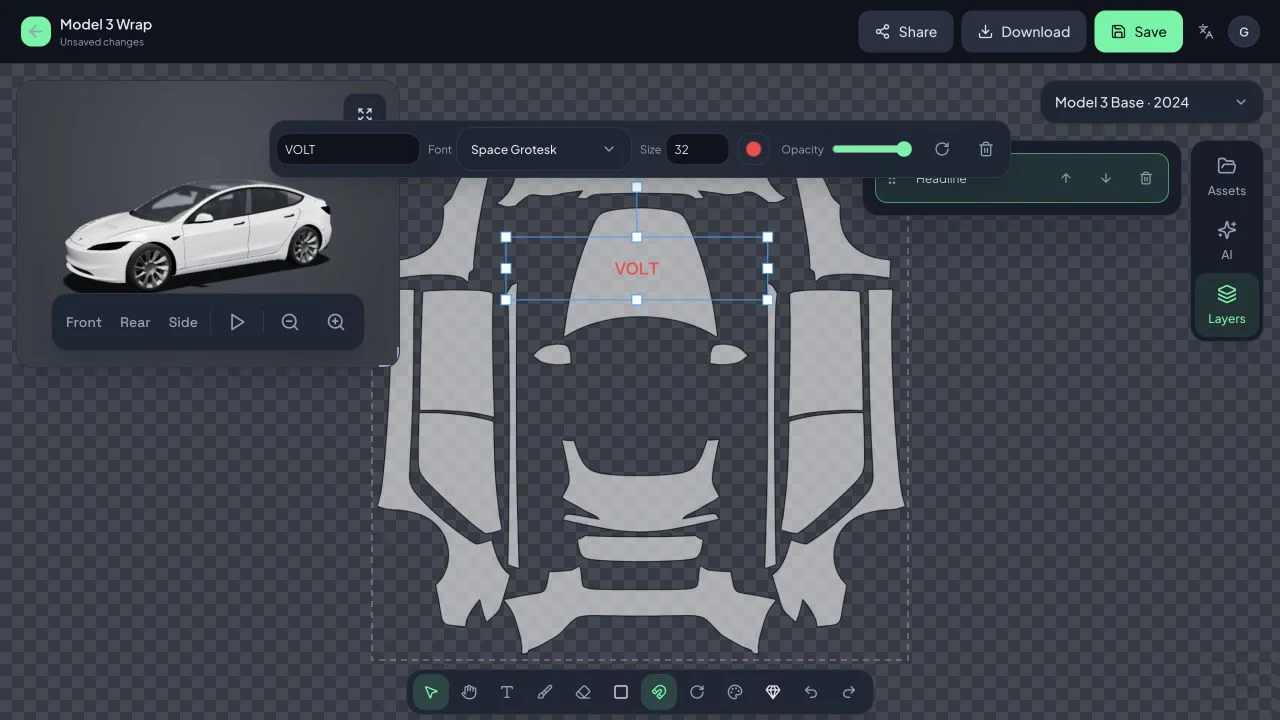
Keep added text and graphics on separate layers so you can adjust them individually.
Use the text tool for wording you may need to correct later. The shape and drawing tools let you add your own marks without rebuilding the source image. Undo and redo are useful for comparing a change in position or scale. Every so often, zoom out: if the design loses its main focal point at the size of a gallery card, reduce the competing detail before adding more.
Check the whole car before downloading
Return to the 3D preview as you work. A line that looks straight on the canvas can bend around a bumper or disappear behind a wheel arch. Check the same views after each substantial change:
- At the front, inspect the hood, headlight edges, and bumper corners.
- On both sides, follow the design across door seams, handles, and wheel arches. Check the direction of repeating elements.
- At the rear, look at where the main graphic ends and how it crosses the trunk or hatch and bumper.
- Above the car, check the roof-to-body transitions and any unexpected blank areas.
Check the finish as well. Reflections can make an otherwise clear graphic harder to read. If a line breaks at a seam, adjust the layer or let it end at the panel edge. For mirrored text, inspect the mapped region and its orientation before flipping other layers. If the artwork looks heavily cropped, confirm the vehicle version and then check its position on the template.
Compare the revised design with the previous one from the same angles. Keep the version that reads more clearly.
Save the project and download the texture
Save keeps an editable project in your account. Wait for confirmation before closing the tab. If saving fails or the page reports a version conflict, deal with that message first. Editing the same project in several tabs can make it harder to keep track of the latest version.
Download gives you the flat texture image used on the vehicle model. Open the downloaded file and check its content; a screenshot of the car serves a different purpose. Keep the editable project so you can return to it if a panel needs adjustment.
To share or publish, save first and review the title and artwork for private material. A design link is useful for getting feedback from friends or discussing changes with an installer.
Load the wrap onto your Tesla
Applying a custom wrap changes the car shown in Tesla's vehicle visualization. Check that your vehicle and software support the feature. Tesla's official custom-wrap repository provides the current templates and transfer requirements.
Check the downloaded file
Use a PNG between 512 × 512 and 1024 × 1024 pixels, at most 1 MB. Filenames can contain up to 30 letters, numbers, spaces, underscores, or hyphens. Convert other image formats properly; changing the extension alone does not convert the file. Check the actual download, since the studio preview does not verify acceptance by the car.
Transfer with the Tesla app
With Tesla app version 4.59.0 or newer, open Creations, choose Wrap, then Upload and select your PNG.
Transfer with a USB drive
Use exFAT, FAT32 (MS-DOS FAT on Mac), ext3, or ext4; NTFS is unsupported. Back up the drive before formatting, which erases its contents.
Create a Wraps folder at the drive's root, copy the PNG into it, and connect it to a vehicle USB port that supports data. Keep map and firmware update files off that drive.
Apply it on the vehicle screen
Open Toybox, then Paint Shop, then Wraps, and select your design. The app and USB drive each support up to ten wraps. Menu labels may differ with language and vehicle software.
If something looks wrong
The car does not show the downloaded wrap
Recheck the PNG format, dimensions, file size, and filename. For USB transfers, confirm that Wraps is at the root, the drive uses a supported format, and it contains no map or firmware updates. Check Tesla's instructions for your vehicle if the expected menu is missing.
The image is broken up across the body
Confirm the vehicle version, then check the UV layout. A photograph needs different placement from a texture already arranged for the template. Reposition your artwork in the editor while watching the affected panel in 3D.
Changing the paint color does not recolor my image
An active texture supplies the body's artwork. Remove it to compare solid colors again. Finish controls still change how light interacts with the image.
My preview disappeared after a reload
The vehicle-page preview is temporary. Keep the original image on your device, and use the editor's Save action for a project you want to return to.
The color looks different on another screen
Brightness, display calibration, and room lighting all affect what you see. The preview helps you compare options; check real material samples before buying physical vinyl.
If you plan to wrap the physical car
Take the artwork and reference views to a professional installer. They need to check the vehicle measurements, print resolution, bleed, panel allowances, stretching, material behavior, and color proofs. The digital texture helps explain the design; a production layout still needs to be prepared for the actual car.